
Kling AI image to video 2026: animate any still with realistic motion
Kling AI image-to-video guide 2026: how to animate photos, product shots, and illustrations. Motion hints, quality tips, use cases, and workflow for creators.
- Kling AI image-to-video animates a static image into a short video clip with realistic physics-aware motion.
- Input image quality matters: sharp, well-lit, clear composition images produce better animation than compressed or cluttered ones.
- Motion hints in the prompt guide how the subject and camera move—without hints, Kling applies a default motion that may not match your intent.
- Best for: animating product photos, portraits, illustrations, AI-generated stills, and existing brand photography.
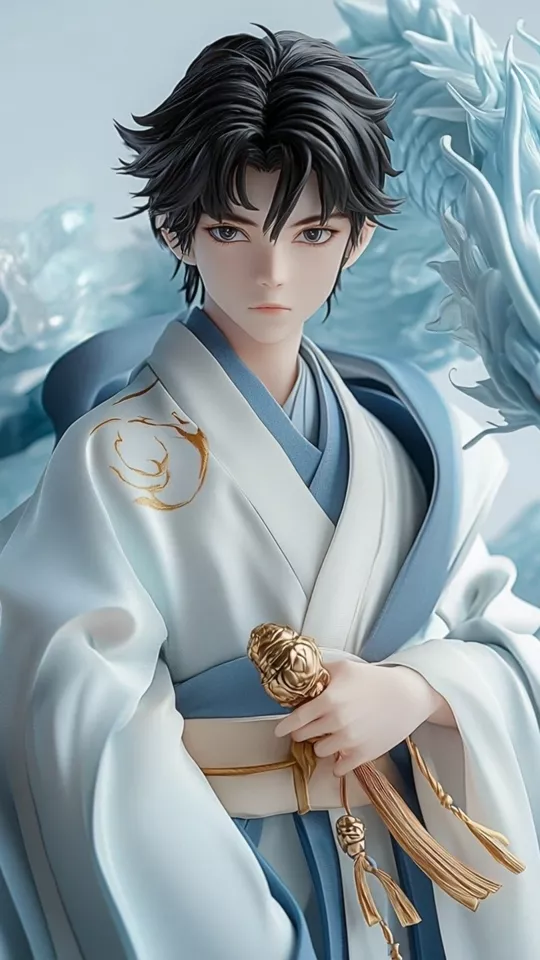
How Kling AI image-to-video works
Kling AI image-to-video takes a static image as input and generates a 5 or 10-second video clip in which the subjects, environment, and camera move in a physically coherent way. The model preserves the visual style, color treatment, and composition of the source image while adding motion that respects the implied physics of the scene.
The core advantage over text-to-video for this use case is consistency. When you start from an image, the subject's appearance, lighting, and environment are already defined. The model does not need to interpret a description—it has direct visual reference. This makes image-to-video more reliable for generating motion around a specific existing asset.
The main input variables are: the source image quality, the motion hint text, and the duration setting.
Best source images for Kling AI animation
Not all images produce equally good animation. The characteristics of your source image significantly affect output quality.
Images that work well:
- Clean, well-lit compositions — Single subject against a clear background produces the most coherent animation. The model handles depth and motion better when the subject boundary is unambiguous.
- High resolution — Upload the highest resolution version you have. Upscaling artifacts in the source image appear in the animated output.
- Clear implied motion — Images where the subject appears to be mid-motion (a person mid-step, water about to fall, a dancer in a pose) give the model strong cues about what motion to complete.
- Consistent lighting — Even, realistic lighting animates more naturally than artificial, flat, or overly complex lighting setups.
- AI-generated images — Images from DALL-E, Midjourney, Stable Diffusion, or similar tools often animate excellently because they are already optimized for visual clarity and composition.
Images that produce inconsistent results:
- Heavily compressed JPEGs with visible artifacts
- Images with multiple subjects in complex arrangements
- Backgrounds with dense detail that creates depth ambiguity
- Faces shot at sharp angles or with strong distortion
Writing motion hints for image-to-video
Motion hints are short text descriptions you provide alongside the source image. They guide how the model animates the scene—without hints, Kling applies a default motion pattern that may not match your creative intent.
Structure of a useful motion hint:
[Subject action] + [Camera movement] + [Environmental motion]
Examples by use case:
Product photography: "Product slowly rotates clockwise, camera gently pushes in toward the label, soft bokeh background remains still."
Portrait or character: "Subject slowly turns head from left to right, eyes blink naturally, hair moves slightly as if in a light breeze, camera static."
Landscape or environment: "Gentle breeze moves grass and tree leaves from left to right, clouds drift slowly across sky, camera slowly pulls back to reveal wider scene."
Abstract or artistic: "Colors flow and blend in slow, organic motion, shapes breathe gently, camera static."
Motion intensity levels:
- "Subtle," "gently," "slow" → minimal motion, good for product shots and formal portraits
- "Moderate," "natural" → standard animation speed
- "Dynamic," "dramatic," "fast" → strong motion, better for action or energetic content
Always specify intensity unless you want the model to decide. Uncontrolled intensity often produces overly dramatic or comically exaggerated motion for scenes that should be calm.
Use cases for Kling AI image-to-video
E-commerce product animation — Animate a product photo to create a short social media clip or ad. A bottle slowly rotating, a shoe's texture catching light as it turns, or clothing fabric moving naturally. This is one of the highest-ROI uses of image-to-video for brands that already have product photography.
AI art animation — If you generate images with Midjourney, DALL-E, or Stable Diffusion, animating them with Kling adds motion that transforms static art into shareable video content. This works particularly well for fantasy, sci-fi, and artistic subjects where stylized motion enhances the aesthetic.
Portrait and character video — Animate a character portrait for game development, social media, avatar content, or creative projects. A painted character coming to life, a game character's idle animation, or a fictional character revealing their expression.
Thumbnail animation — Turn a YouTube thumbnail design into a short animated clip for the Shorts feed, Twitter, or preview content. This reuses existing visual assets without generating new ones from scratch.
Before/after reveals — Animate a before image to transition toward an implied after state: a renovation, a transformation, or a process completion. The motion creates visual interest without requiring a full video production.
Demo thumbnails from the guide:
Below are four actual Kling image-to-video outputs included with this guide. Each was generated from a source image with a motion hint:
Source: portrait still — motion hint: natural head movement and blink
Source: cat portrait — motion hint: subtle breathing and ear movement
Source: fantasy illustration — motion hint: slow wing movement and atmospheric haze
Source: abstract art — motion hint: slow rotation and light bloom
These demos show the range of image-to-video: from realistic portraits to fantasy illustrations to abstract art. Each animates with motion that respects the visual logic of the source image.
Kling IMAGE O1 model performance
The IMAGE O1 Updated Model shows significant improvements in image-to-image consistency and overall satisfaction versus the previous Kling O1 baseline:
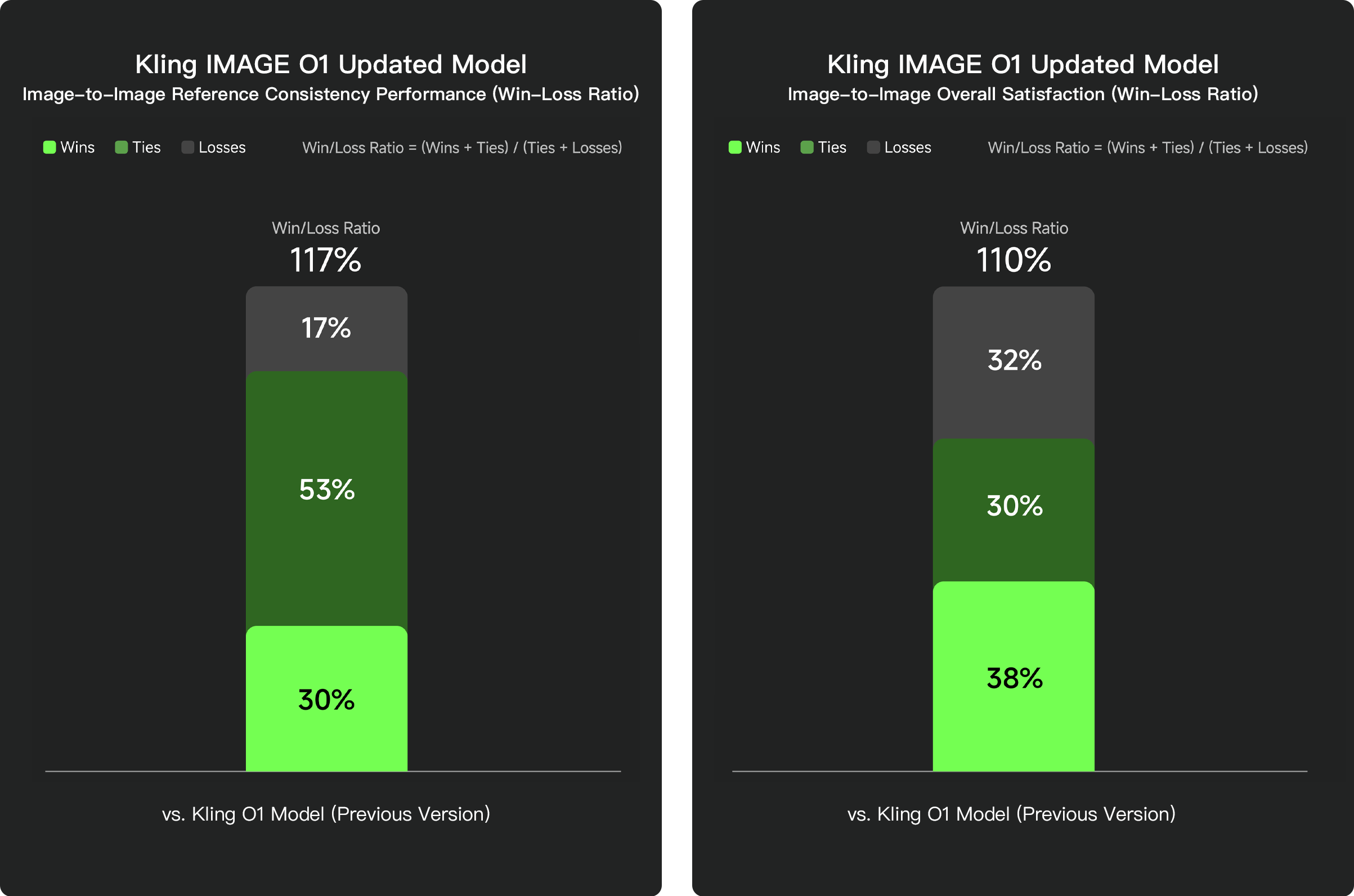
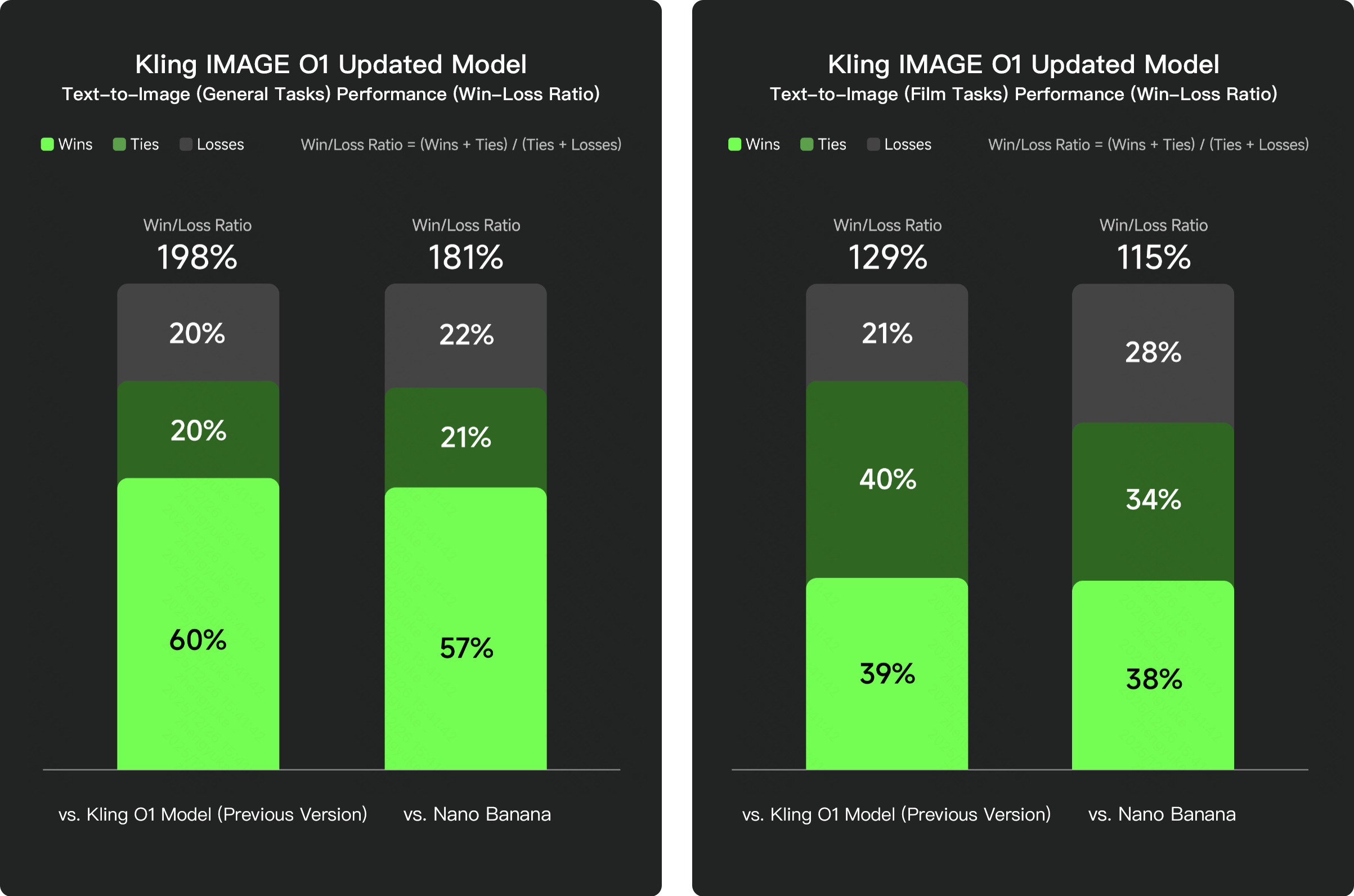
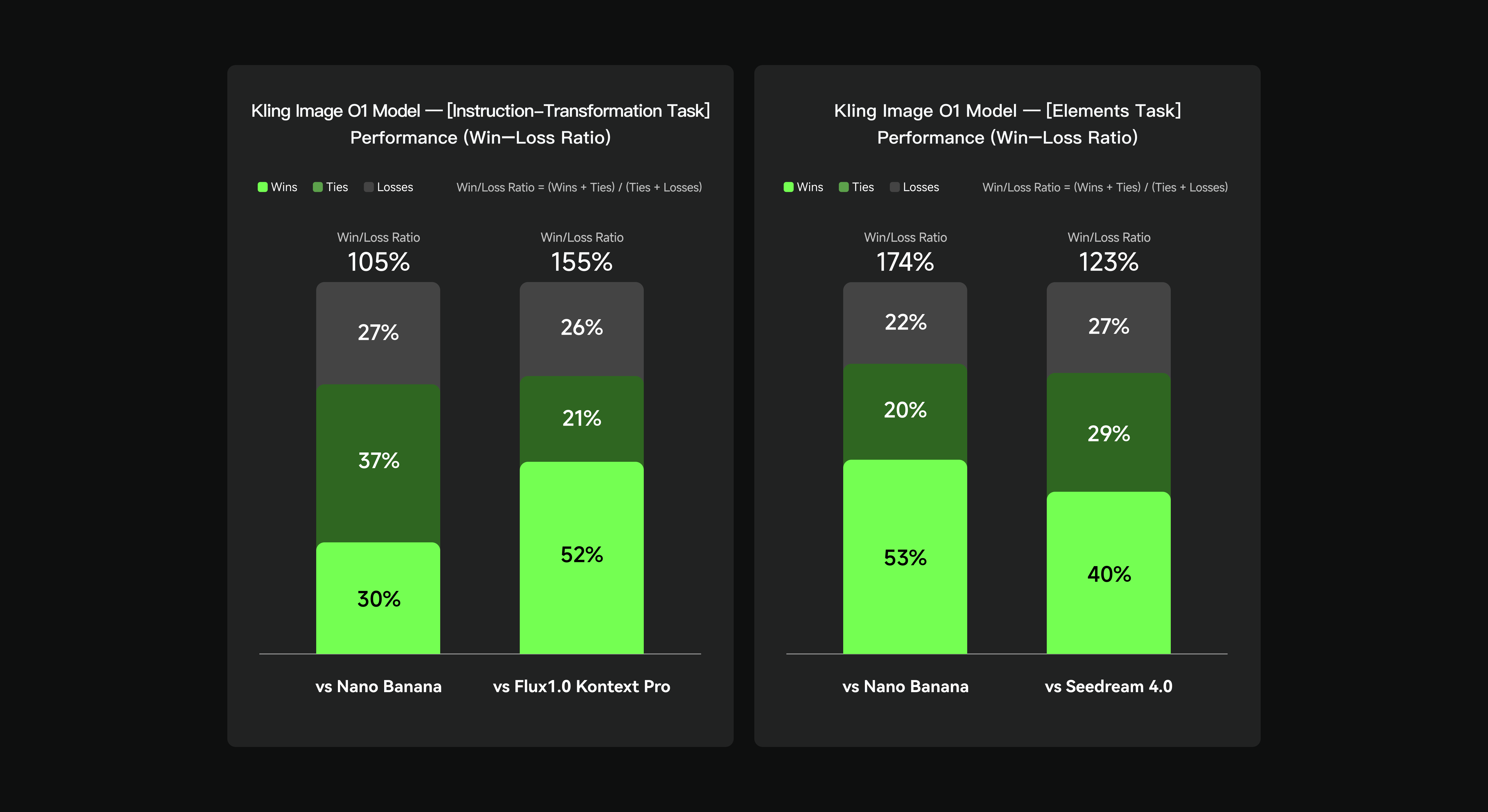
These benchmark numbers reflect model performance as of the IMAGE O1 Updated release. They confirm that Kling's image generation layer—which feeds directly into image-to-video quality—has improved measurably over competing models on general and cinematic tasks.
Upload a source image and animate it with Kling AI—free credits available for first test.
Try Kling AIFAQ
What image formats does Kling AI accept for image-to-video?
Kling accepts standard image formats including JPEG and PNG. Use high-resolution, well-lit images for best results.
Can I control the direction of motion in image-to-video?
Yes. Use motion hint text to specify how the subject or camera should move: 'subject slowly turns head right,' 'camera gently pushes in,' 'leaves blow from right to left.'
How does image-to-video differ from text-to-video in Kling?
Image-to-video animates an existing composition—the subject, lighting, and style are already defined by the source image. Text-to-video generates the composition from scratch from your description.