
Kling AI text to video 2026: from prompt to cinematic clip
Kling AI text-to-video guide 2026: how to write prompts that work, camera control, resolution choices, iteration strategy, and production-ready output.
- Kling AI text-to-video converts a written description into a short video clip (5 or 10 seconds) using the Kling 3.0 model.
- Prompt quality is the primary variable in output quality. Include subject, action, environment, lighting, style, and camera direction.
- Run 3–5 iterations per clip to find the best output. Variation between runs is significant—the first generation is rarely the best.
- Combine Kling text-to-video with ElevenLabs voiceover and post-production editing for a complete, publishable production workflow.
How Kling AI text-to-video works
Kling AI text-to-video takes a written prompt and renders it as a short video clip using the Kling 3.0 model. The model interprets your description—including subject, action, environment, style, and implied camera position—and generates a coherent video with realistic motion, lighting, and spatial depth.
The output is a 5-second or 10-second clip at your chosen resolution (720p or 1080p) and aspect ratio (16:9, 9:16, or 1:1). The Kling 3.0 model delivers noticeably better motion coherence and subject consistency than earlier versions, which makes it the recommended choice for any production-oriented workflow.
The process is fast: most generations complete in under a minute. The challenge is not generation speed—it is prompt quality and iteration discipline.
Prompt strategy for Kling AI text-to-video
The single biggest variable in Kling text-to-video output quality is your prompt. A vague prompt produces generic, often unusable output. A specific, structured prompt produces cinematic, directorial footage that requires less iteration to become publishable.
A high-quality Kling prompt includes:
Subject — Who or what is in the frame. Be specific about appearance, age, clothing, and distinguishing features. "A woman in her 30s" is weak. "A woman in her early 30s with curly brown hair, wearing a white linen shirt" gives the model more to work with.
Action — What is happening. "Walking" is weak. "Walking slowly through a crowded market, turning her head to look at a stall on her right" gives motion direction, speed, and interaction.
Environment — Where the scene takes place. Include location, time of day, weather, and architectural or natural details. "A sunny afternoon in a narrow Moroccan souk with terracotta walls and hanging lanterns" is specific enough to guide style and lighting.
Camera direction — How the camera behaves. This is where many beginners lose output quality. "Camera slowly pushes in toward her face" or "wide establishing shot that gradually zooms in" gives the model a trajectory to follow.
Style and mood — The visual treatment. "Cinematic, warm color grade, shallow depth of field" or "documentary style, handheld, natural light" anchors the aesthetic.
Example of a weak vs. strong prompt:
Weak: A person cooking in a kitchen.
Strong: A middle-aged man in a chef's apron carefully plating a dish in a modern restaurant kitchen, stainless steel countertops, dramatic overhead lighting, slow crane shot rising above the plate, cinematic color grade, shallow depth of field.
The second prompt gives the model subject, action, environment, lighting, camera movement, and style. The output will be meaningfully better.
Prompt length and complexity — Kling handles long, detailed prompts well. Do not truncate for brevity. More context produces more directed output.
Negative prompts — Kling supports negative prompt fields where you can specify what to exclude: "no text overlay, no lens flare, no rapid cuts, no people in background" can clean up common generation artifacts.
Camera control in Kling AI
Camera control is one of Kling's most valuable differentiators for professional workflows. Rather than accepting whatever camera behavior the model defaults to, you can specify a camera trajectory that shapes the storytelling.
Available camera movements:
- Pan — Horizontal rotation. Left or right sweep across the scene.
- Tilt — Vertical rotation. Up or down reveal.
- Zoom — Focal length change. Push in (zoom in) for intensity; pull back for reveal.
- Push/Pull — Physical camera movement toward or away from the subject (dolly move). More immersive than zoom.
- Orbit — Camera rotates around the subject while the subject stays centered.
- Crane/Rise — Vertical physical movement while maintaining composition.
- Static — Locked-off shot. Useful for subjects in motion against a stable background.
How to specify camera movement in your prompt:
Include the movement explicitly in the prompt: "slow push-in on the subject's face," "camera orbits the product from right to left," or "static wide shot, subject walks toward camera from background."
For the most precise control, Kling also offers camera control interfaces in the generation settings where you can define the trajectory programmatically rather than relying on the prompt alone.
Matching camera to content:
- Product demos: push-in or orbit to show detail
- Character introductions: slow tilt-up reveal
- Environment shots: slow pan across the scene
- Emotional moments: static or slow push-in
- Social media hooks: fast zoom-in for immediate attention
Multi-Shot: directing sequences in a single generation
The Multi-Shot feature lets you describe multiple camera shots within a single prompt, and Kling renders them as a sequenced clip with consistent characters and visual continuity across shots. This is particularly useful for social media content, product presentations, and concept storyboards where you need to show a scene from multiple angles without stitching clips manually.
Enable the Multi-Shot toggle in the generation interface, then describe each shot in sequence within your prompt. The model maintains subject consistency between shots, which reduces the most common problem with multi-clip editing: character drift between generations.
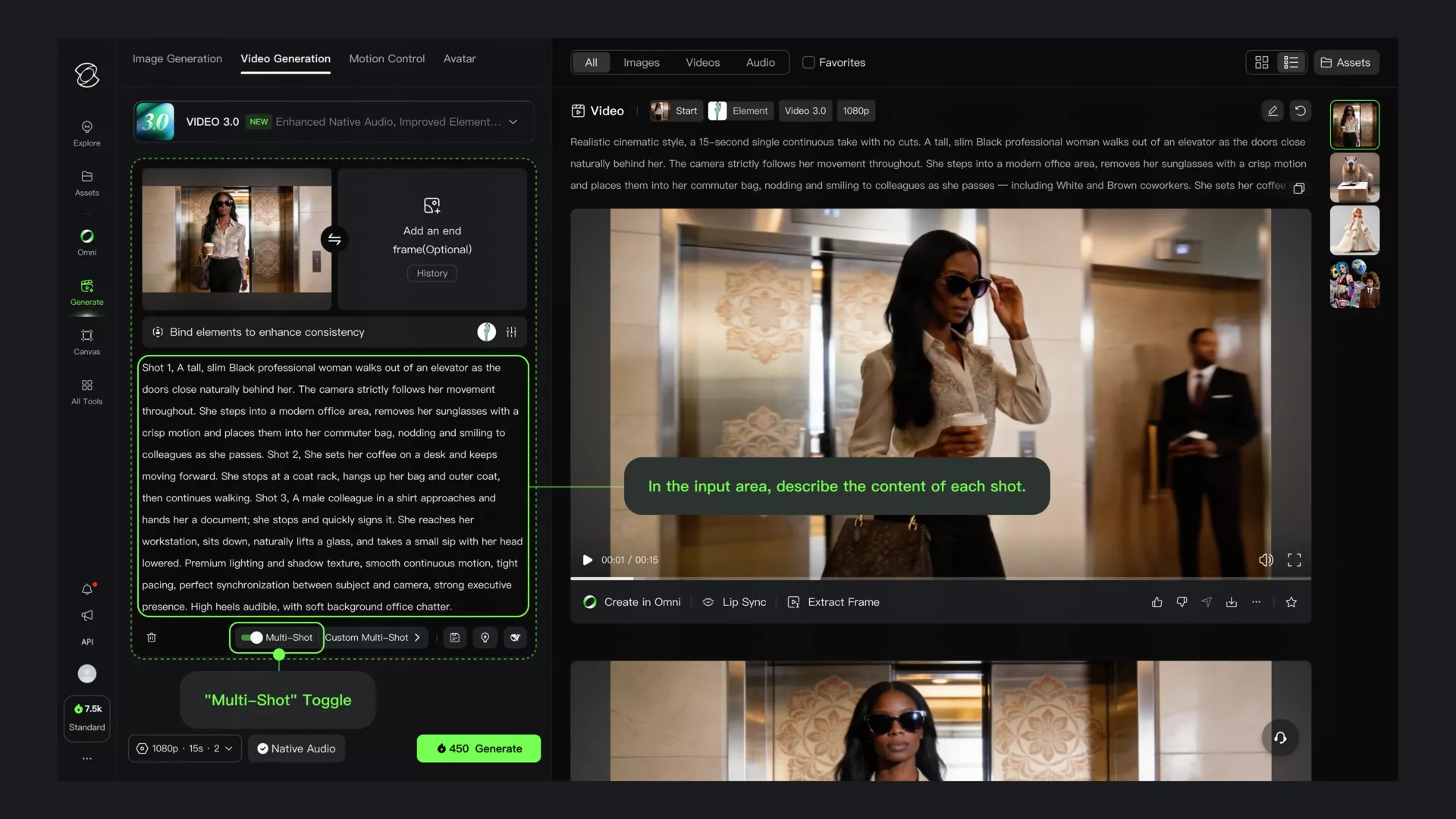
Multi-Shot output examples:
Full text-to-video workflow for production
Step 1: Define the clip purpose. Before writing a prompt, decide what this clip does in your video. Is it an establishing shot, a b-roll cutaway, a hook for a social clip, or a standalone piece? The purpose determines acceptable prompt failure tolerance and post-production requirements.
Step 2: Write the prompt with all six components. Subject, action, environment, camera direction, style, and mood. Write at least 50–100 words. Do not underspecify.
Step 3: Choose settings. Select resolution (1080p for final delivery, 720p for concept testing), clip length (5s or 10s), and aspect ratio (16:9 for YouTube, 9:16 for Shorts/Reels, 1:1 for Instagram). Native audio is useful for concept reviews but often replaced in post.
Step 4: Generate 3–5 variations. Run the same prompt multiple times. Note which variations work and what specifically differs in the successful ones. This also trains your prompt intuition over time.
Step 5: Select and download. Pick the best clip based on motion coherence, subject consistency, and camera behavior. Avoid selecting based on first impressions—review at 0.5× playback speed to catch motion artifacts.
Step 6: Post-production. Add voiceover using ElevenLabs for controlled, scriptable narration. Add captions using Pictory or a dedicated captioning tool. Cut to rhythm, add music if needed, and export in the correct format for your platform.
Step 7: Platform QA. Watch the final clip on the intended platform at full speed on mobile. This is where pacing problems, caption readability issues, and visual inconsistencies become apparent.
Sources and update notes
Updated May 9, 2026 from official Kling AI sources:
Try Kling AI through our affiliate link: klingai.com via affiliate.
Affiliate link: open Kling AI and test a real text-to-video prompt before committing to a paid plan.
Try Kling AIFAQ
How long can Kling AI text-to-video clips be?
Kling generates clips in 5-second and 10-second segments. Longer sequences require assembling multiple clips in post-production.
What aspect ratios does Kling text-to-video support?
Kling supports 16:9 (landscape), 9:16 (portrait/vertical), and 1:1 (square) aspect ratios to match different platform requirements.
How much does text-to-video cost in Kling AI?
In Kling 3.0, a 10-second clip costs 80 credits at 1080p without audio, or 120 credits at 1080p with native audio. See the pricing guide for full details.